Give Claude your brand once, and every deck, page and design it makes from then on uses your colours, fonts and rules. Four steps from the Claude app home.
Updated
November 2026
Time needed
About 15 minutes
Plan
Pro, Max, Ultra, Team or Enterprise
Step 01
Where Claude Design went
Claude Design used to be its own app at claude.ai/design. It has now been merged into Artifacts, so a design system is something you make and use inside any Claude chat.
The change is reaching accounts at different times, so what you see depends on yours. Some people have a Design item in the left sidebar and some don't yet. That's fine: the route in this guide starts from the Claude app home and works for everyone.
Made design systems in the old Claude Design? Open Design in the sidebar and click Move team design systems to bring them across. The standalone claude.ai/design closes by 14 December 2026.
On Enterprise, an owner has to switch design systems on first, in Organisation settings, then Artifacts. On Pro, Max, Ultra and Team they're on already.
Step 02
Start from the Claude app home
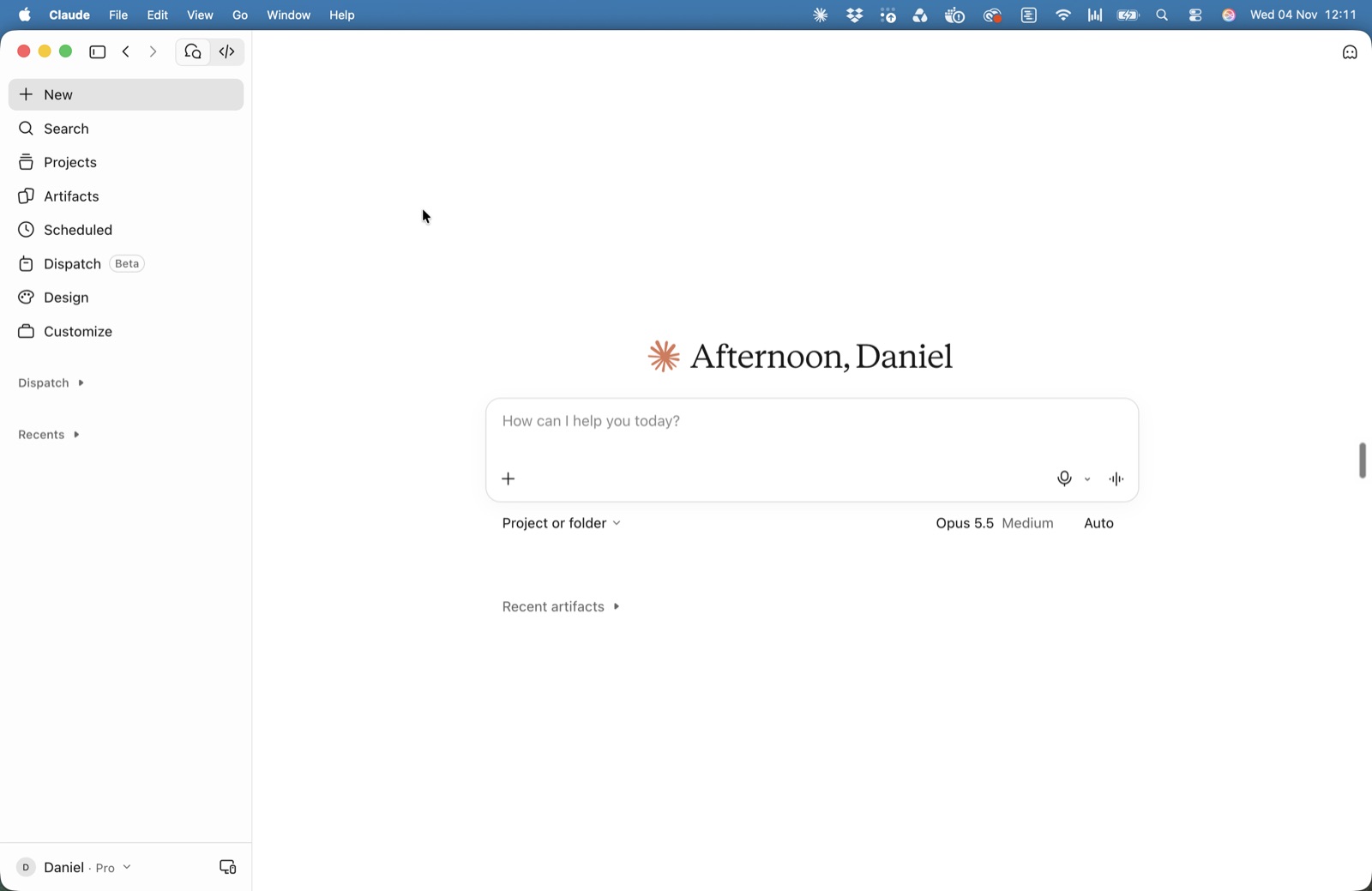
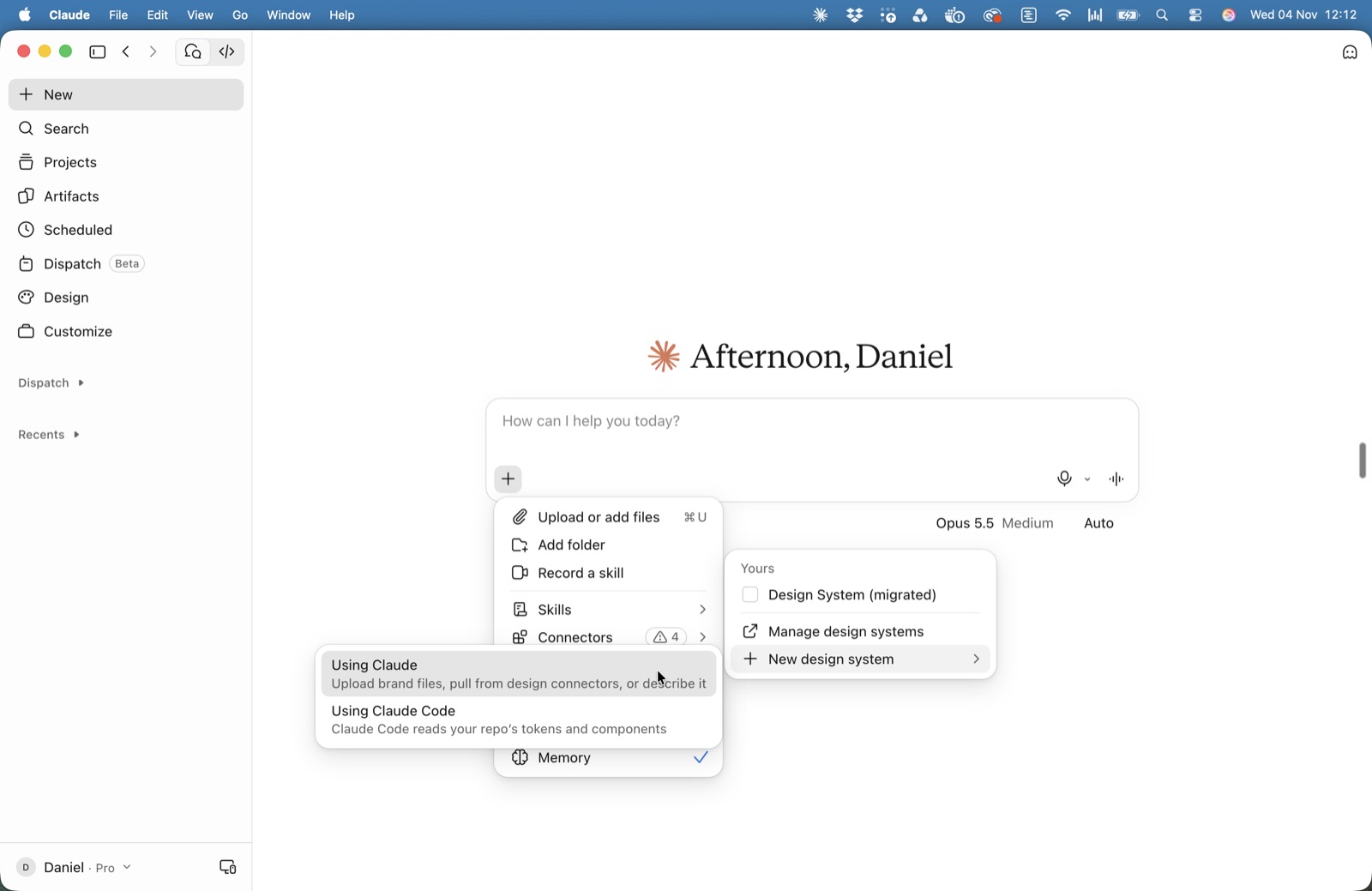
Click New in the sidebar to get to the home screen, then open the + menu under the message box.
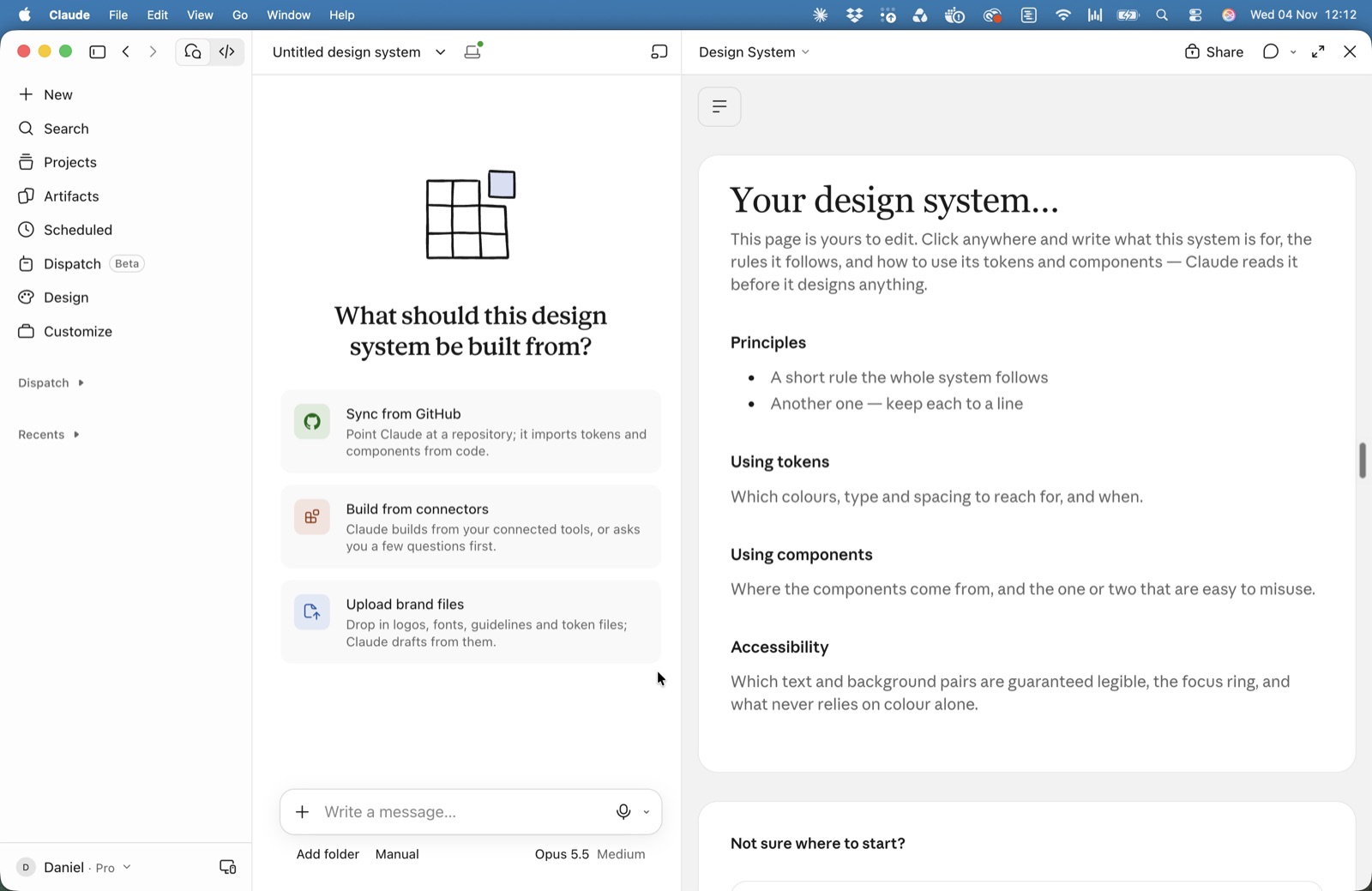
1Sync from GitHub. Point Claude at a repository and it brings in colours, type, spacing, fonts and logos from the code. It leaves the repository unchanged.
2Build from connectors. Claude works from the tools you've connected, such as Figma or Google Drive. Nothing connected? It asks you a few questions instead.
3Upload brand files. Drop in your logo, fonts, brand guidelines PDF and a few finished pieces. Claude drafts from them.
4Your design system page. Claude reads it before it designs anything, so click in and write your rules: which colours to use when, what never to do, which text and background pairs are easy to read.
5Give it a name you'll recognise in the + menu.
Real examples beat a spec. A finished deck or a landing page you're proud of tells Claude more than a list of hex codes. The first draft is small on purpose. If it misses your brand, upload more and ask Claude to try again.
Step 05
Use it in your next chat
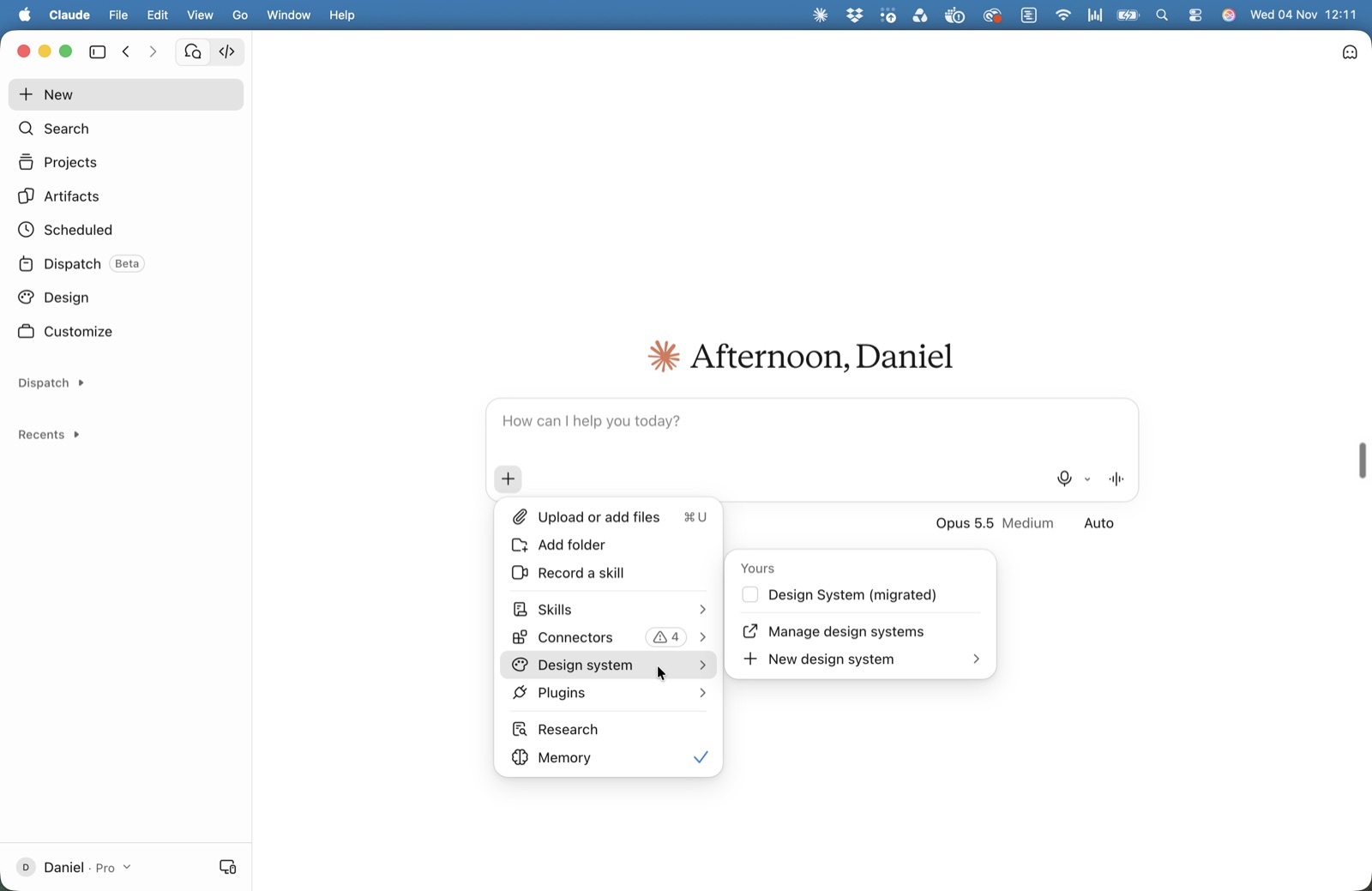
Open the + menu, hover over Design system and tick yours (Fig. 2). Ask for a deck, a one-pager or a design and Claude builds it in your brand.
To change it later, open Manage design systems from the same menu, or go to Settings, then Capabilities and click Manage next to Design systems.
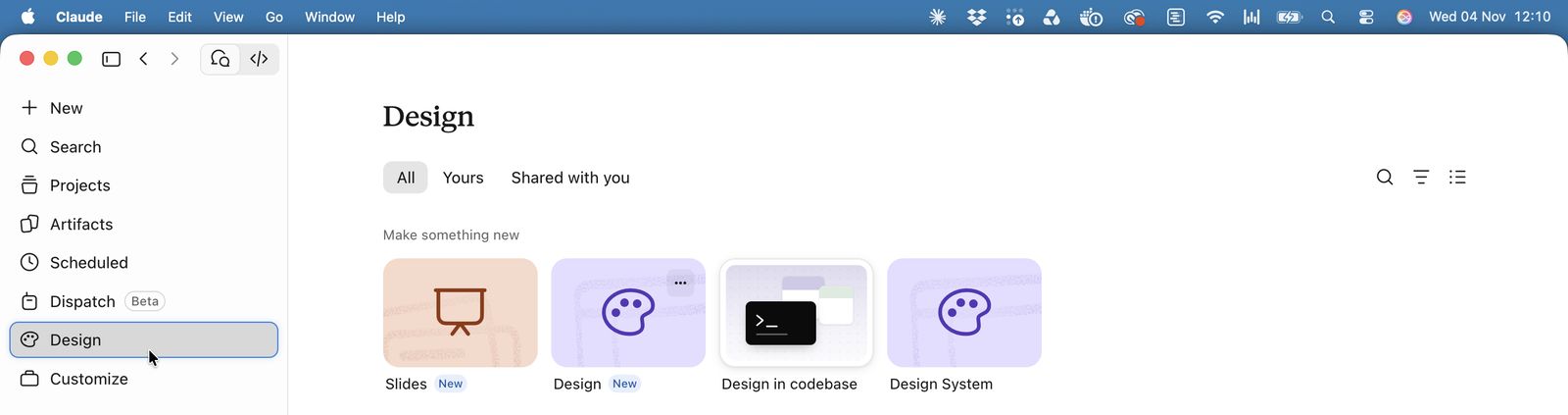
If your account has the Design item in the sidebar, you'll find a Design System tile there too. It opens the same wizard.
123Fig. 5 The Design page, on accounts that have it.
1Design in the sidebar. Not there? Use the + menu as above.
2Design System starts the same wizard as Fig. 4.
3Design in codebase is for working with Claude Code in your own project.
Step 06
In the app or in code?
Use the app if your brand lives in files, a design tool or your head. Use Claude Code if your design system is already built as code, with React components and tokens, so Claude designs with exactly what you ship.
In the Claude app
In Claude Code
Best for
A brand: logo, fonts, colours, guidelines
A product whose components already exist in code
Built from
Uploaded files, connectors, your answers or a GitHub repository
The tokens and components in the project on your computer
You need
A Claude plan with design systems
The same plan, plus Claude Code and the project on your computer
First result
A small draft Claude offers to expand
Your tokens, plus the components you pick, each with a preview
Keeping it up to date
Sync again from GitHub, or upload more and ask Claude to update it
Run the sync again. It updates one component at a time and asks before removing anything
Doing it in code
Set up VS Code with Claude Code (the VS Code setup guide shows how) and sign in with the same Claude account you use in the app.
Open the folder that holds your component library.
In the Claude Code panel, type /design-sync and send it. Claude Code finds your tokens and components and lists them.
Pick the components to include. Claude asks before it runs your project's build, because it needs to render each one to make its preview.
Check the plan. Before it writes anything, it shows you the exact files it'll send to your design system, and you approve them.
Back in the Claude app, your design system is in the + menu under Design system, ready to use.
No component library yet? Start in the app. You can add the code route once your components exist and keep both in step by running the sync again.