A scheduled task is a job you describe once and Claude runs on its own, every morning, every Monday or whenever you click. The result waits for you in the app, and if it makes a page you can share it with your team by link.
Updated
November 2026
Time needed
About 10 minutes for your first task
Applies to
Pro, Max, Team and Enterprise plans
Step 01
What a scheduled task is
Think of it as a standing instruction to a colleague: "every Monday at 7, go and look at this and leave me a short note".
You give the task a name, the instructions and how often it runs. When the time comes, Claude starts a fresh chat on its own, does the work and saves the result under Scheduled in the left sidebar. It can search the web, read the files and connected apps you've given it access to (your calendar, email, Drive and so on) and make a document or a page.
Good jobs for it are the ones that start with "go and look at...": checking for new regulations, a morning brief from your calendar and inbox, a weekly summary of what changed in a shared file, a reminder list for Friday.
Plans. Scheduled tasks are on every paid plan: Pro, Max, Team and Enterprise. On Team and Enterprise your admin can switch them off, so if you can't see Scheduled, ask whoever manages your Claude account.
Step 02
Do it once in a chat first
Before you put anything on a timetable, do the job once with Claude in an ordinary chat and check the result.
That tells you Claude can do it with what it has access to, and it shows you what to put in the instructions: the sources it should use, the format you want back and what it got wrong the first time. When the chat gives you something you'd be happy to receive every week, you're ready to schedule it.
Step 03
Three ways to set one up
All three end in the same place. Pick the one that suits you.
Ask in any chat. In the newest version of the app you can just say it: "Every Monday at 7:00, check... and give me...". Answer Claude's questions, check the name, schedule and instructions it proposes, then click Schedule.
Create with Claude. Click Scheduled in the left sidebar, then New task in the top right, then Create with Claude. Claude asks you a few questions, some with multiple-choice answers, and writes the task for you. Check it and click Schedule.
Set up manually. Same start, but choose Set up manually and fill in the form yourself (Fig. 2). Good when you've already done the job in a chat and can paste in the instructions that worked.
ClaudeDrawing
New chatChatsProjectsArtifactsScheduled 1
ScheduledNew task 2
Create with Claude 3Set up manually 4
Morning briefCalendar, important email and what needs you today
Inbox triageSort what's urgent from what can wait
Monitor a topicNew articles or notices on a subject you choose
Fig. 1 The Scheduled page.Drawn from the help pages. The templates you see depend on your version.
1Scheduled in the left sidebar. If you don't see it, check you're in the chat view (the speech bubble at the top of the sidebar) and not in Code. In some versions it sits under More.
2New task, top right.
3Create with Claude: answer a few questions and Claude writes the task.
4Set up manually: opens the form in Fig. 2.
Create scheduled taskDrawing
Weekly regulation check
Every Monday, search the official sites below for anything published in the last 7 days about... For each item give the date, title, link and one line on what it means for us. If there's nothing new, say "Nothing new this week".
HourlyDailyWeekdaysWeeklyManual
Ask before acting
Default · no folder
Save
Fig. 2 Set up manually.Drawn from the help pages. Some versions also offer notifications (in the app and by email) and a Project the task works in.
1Task name, required. Something you'll recognise in a list.
2Prompt, required: what Claude does each time. See step 04.
3Frequency, required: hourly, daily, weekdays, weekly or manually (only when you click Run now). Start with manual.
4Approval mode, required: how much Claude may do before it asks you. While you're learning, pick the one that asks first.
5Model and Folder, optional. Leave the model on the default. Only choose a folder if the job needs files on your computer, because then it can only run on your computer (step 05).
Step 04
Write the instructions
Nobody is there to answer questions when the task runs, so the instructions have to say everything you'd say to a new colleague.
Where to look. Name the sites, files or apps. "Official sources only" is vague; "the Government Gazette and the Pharmacy Council website" is clear.
What to bring back. The format, the length and the fields: date, title, link, one line on why it matters.
What to do if there's nothing. "If there's nothing new, say so and stop." Otherwise it may fill the space.
What not to do. Don't send anything, don't change any files, don't guess a number.
A time guard. If the run happens late (step 05), "only look at the last 7 days" keeps it right.
Template · copy and fill in the amber parts
[How often], look at [where: named sites, files or connected apps] for [what: anything new about..., anything due..., anything that changed...] in the last [7 days].
For each item give [the fields you want: date, title, link, one line on what it means for us].
Use only what you find in those sources. If something is unclear, say so instead of guessing.
If there's nothing new, say "Nothing new this week" and stop.
Don't send emails, change files or contact anyone.
Step 05
When it runs
Most tasks run on Anthropic's servers, so they run on time even when your laptop is asleep or the app is closed.
Tasks that need your computer are different. If you pick a folder on your computer or a job needs an app installed on it, the task can only run there, so the computer has to be on and the app open.
If your computer slept through a run, the app runs it once when you're back, for the most recent missed time only. A 7:00 task might run at 11:00. That's why the time guard in step 04 matters.
A task that stops to ask permission waits for you, and nothing happens until you answer. Run it once with Run now while you're at your desk and approve what it needs, so later runs don't get stuck.
It uses your plan. Every run counts towards your usage like a chat does. Hourly tasks add up fast, and weekly is plenty for most jobs.
Using Claude Code? The Code tab of the desktop app has its own scheduled tasks for work on your files, local ones that need the app open and cloud ones that don't. The setup is a little different and is covered in Anthropic's Claude Code docs.
Step 06
Look after your tasks
Click Scheduled in the sidebar, then click a task to open it.
Weekly regulation checkDrawing
Weekly regulation checkRun now 1ActivePaused2Edit 3
Mon 16 Nov, 7:023 new noticesMon 9 Nov, 7:02Nothing new this weekMon 2 Nov, 11:40Ran late: computer was asleep
Delete 5
Fig. 3 A task's page.Drawn from the help pages.
1Run now: run it straight away. Use it to test, and for manual tasks.
2Pause it and turn it back on later without losing it.
3Edit the instructions or how often it runs. When a result is wrong, fix the instructions here, then Run now to check.
4Past runs. Click one to open the chat it made, read the result and ask follow-up questions.
5Delete removes the task. The chats it made are kept in your archive.
New results show a small blue dot next to the task in the sidebar. Depending on your notification settings, you also get a pop-up when a run finishes.
Step 07
Share what it makes
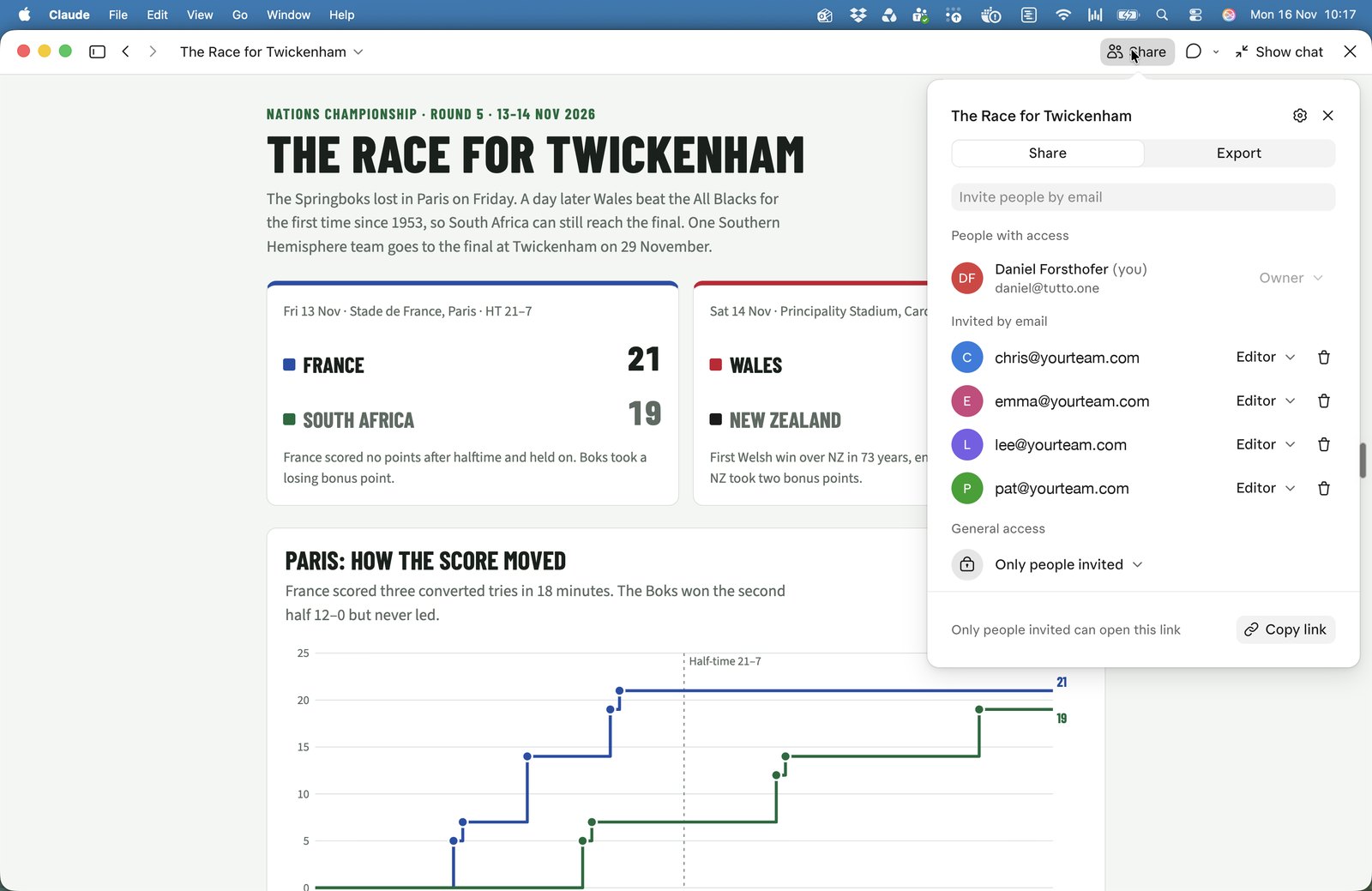
When a task (or any chat) makes a page, a chart or a document, Claude saves it as an artifact. You'll find it under Artifacts in the sidebar, and you can share it from there.
2Invite people by email. They get an email invitation (check the Other or Junk folder) and need a Claude account with that address.
3What each person can do: view, comment or edit. Editors can ask their own Claude to change it. Remove someone with the bin icon.
4General access. It starts private (only you, or only the people you invite). Change it to Anyone with the link to share it more widely: most artifacts then open without a Claude account.
5Copy link to paste into an email, Teams or Slack.
6Export: a web page (HTML) that opens in any browser, a Markdown file to hand to another AI, or a PDF.
Someone without Claude needs to edit it? Ask Claude to make a Word or PowerPoint version and work on that. The layout shifts a little between formats.
Need a PDF? The PDF export can break pages in odd places. Ask Claude in the chat instead: "make a PDF of this, with page breaks only before a heading".
Team and Enterprise plans may also offer "Anyone at your organisation", and your admin decides whether links can go outside it.
A link can be forwarded. Don't share a link to anything confidential, any personal data (names, ID numbers, marks, salaries) or a client's material. Invite named people instead, or export a file and send it the usual way. Check two numbers in anything a task made before someone else reads it.
Step 08
Ideas to start with
Start with one task, set to manual. Run it a few times by hand, fix the instructions, then put it on a timetable.
Morning briefWeekdays at 7:30: today's meetings, emails that need an answer and anything due this week.
Regulation or news watchWeekly: new notices on named official sites, with links or "nothing new".
Before a board or client meetingWhat changed in a shared file since last time, in one page.
Friday look-aheadWhat's due next week from a plan or timetable you keep in Claude.
Content ideasWeekly: three ideas for posts or lessons from what's new in your field, with sources.
HousekeepingMonthly: remind you to check your privacy setting and tidy your rules files.
Reference
Quick reference and sources
To do this
Go here
See and create tasks
Scheduled in the left sidebar, then New task
Create one by talking
Any chat: "every Monday at 7, ..." (newest app), or New task, Create with Claude
Test, pause, edit, delete
Click the task: Run now, Active/Paused, Edit, Delete
No Scheduled in the sidebar: switch to the chat view (the speech bubble), look under More, and update the app. On Team and Enterprise, ask your admin whether it's switched on.
A task didn't run: open it and check the history. Tasks that use a folder on your computer only run while it's awake and the app is open.
A run is stuck: it's probably waiting for your permission. Open the run and answer it.
No Share button, or no "Anyone with the link": on Team and Enterprise your admin controls outside sharing. Sharing settings can't be changed in the phone app.